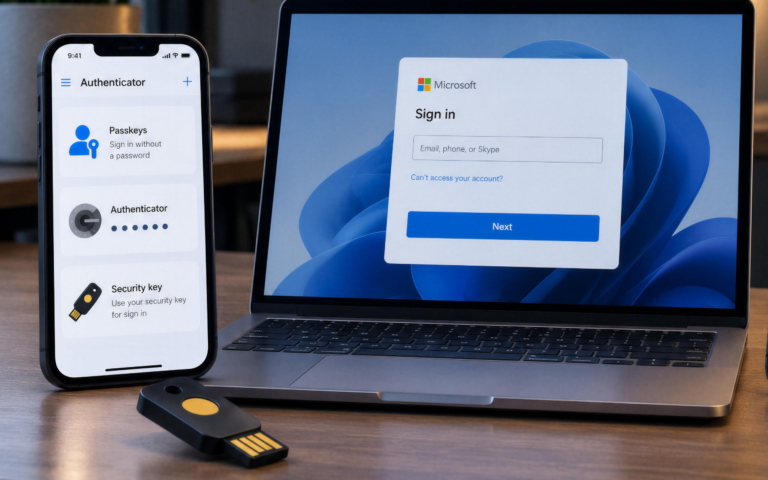
A vendor emails you, a little confused. That file you shared back in the spring, the one they’ve opened a dozen times, suddenly says “Access Denied.” You didn’t move it. You didn’t revoke anything. Nothing on your end changed. But they’re locked out, and now you’re the one who looks broken.
If that started happening recently, you’re not imagining it, and there’s nothing wrong with your files. Microsoft changed how people outside your company get into the documents you share from SharePoint and OneDrive, and the old way stopped working on October 31, 2026. Here’s what changed, why some people are affected and others aren’t, and how to get anyone who’s locked out back in.
What Actually Changed
For years, when you shared a SharePoint or OneDrive file with someone outside your company, Microsoft would email them a one-time code. They’d type it in, and they were in. Simple, and it worked.
Microsoft has retired that code. In its place, outside people now need a “guest account” — a proper, tracked identity in your Microsoft system — to open anything you share with them. Behind the scenes, this moves external sharing onto something called Microsoft Entra B2B, which is simply the modern, more secure way Microsoft handles outside access.
It’s a genuine improvement: guest accounts are easier to manage, easier to see, and easier to shut off cleanly when someone no longer needs access. But the change came with a hard cutoff, and that cutoff was October 31, 2026. After that date, the emailed code no longer works, and there’s no fallback.
Why Some People Are Getting Locked Out — and Others Aren’t
This is the part that confuses most business owners, because the problem looks random. It isn’t.
Anyone you’ve shared with recently is fine. When the new system rolled out to your account, it started quietly creating guest accounts for new shares automatically. Those people won’t notice a thing.
The people hitting “Access Denied” are on older share links — the files you sent months ago. Those links ran on the old emailed-code system, and with the code retired, there’s nothing left for them to use. The person simply can’t get in until they’re set up the new way.
So the files most likely to break are exactly the ones you’ve relied on longest: the standing document you share with a key vendor, the folder a client checks every month. The more important and long-running the relationship, the more likely it is to be affected — which is why it can feel like your most critical files are the ones failing.
How to Tell If This Is Affecting You
You don’t need to go digging through settings to spot this. The signs are simple:
- An outside client or vendor says a file or folder you shared “won’t open” or shows “Access Denied,” when it worked fine before.
- It’s happening on older shares, not things you’ve sent in the last few weeks.
- Nothing changed on your side — you didn’t move the file, delete it, or change who it’s shared with.
If that matches what you’re hearing, this change is almost certainly the cause, not a mistake on anyone’s end.
How to Restore Access
The good news: fixing it is quick.
For a one-off, just re-share the file. Sharing the file or folder with that person again sets them up the new way automatically, and they’re usually back in within minutes. For a single client or vendor who lost access to one or two things, this is all it takes.
For anything bigger, it’s worth doing properly. If a client has lost access to a whole library, or you’ve got older share links scattered across the business, re-sharing one file at a time gets painful fast. In that case, someone with the right access can review what’s affected and set the external people up correctly in one pass — so you’re not answering “I can’t open the file” emails one at a time for weeks.
What Business Owners Should Do Now
Even if nobody’s complained yet, a few sensible steps keep this from turning into a scramble:
Give your team a heads-up. Let anyone who works with outside clients or vendors know that an “I can’t open the file you shared” message is probably this change — not something they did wrong. That alone prevents a lot of confused back-and-forth.
Think about your most important external shares. The standing folders and documents you share with key clients and partners are the ones most likely to be on older links. Those are worth checking before the client notices.
Decide who handles this. Restoring access cleanly across the business is an administrator task, not something every staff member should be improvising. Having one clear owner for it — internal or your IT provider — keeps it consistent and secure.
How We Help
At Circle Twice, this is squarely the kind of change we handle for the businesses we support. We can review how your company shares files with outside clients and vendors, find the older links most likely to break, and get the right people set up properly on the new system — so access is restored quickly and cleanly, without you fielding complaints one at a time. If you’re on one of our managed plans, this is already part of what we cover.
If outside partners are suddenly hitting “Access Denied” on files you shared — or you’d simply rather get ahead of it before they do — that’s exactly the kind of gap we can close fast.
Contact us, and we’ll review your external sharing, find anything that’s broken, and get your clients and vendors back in.